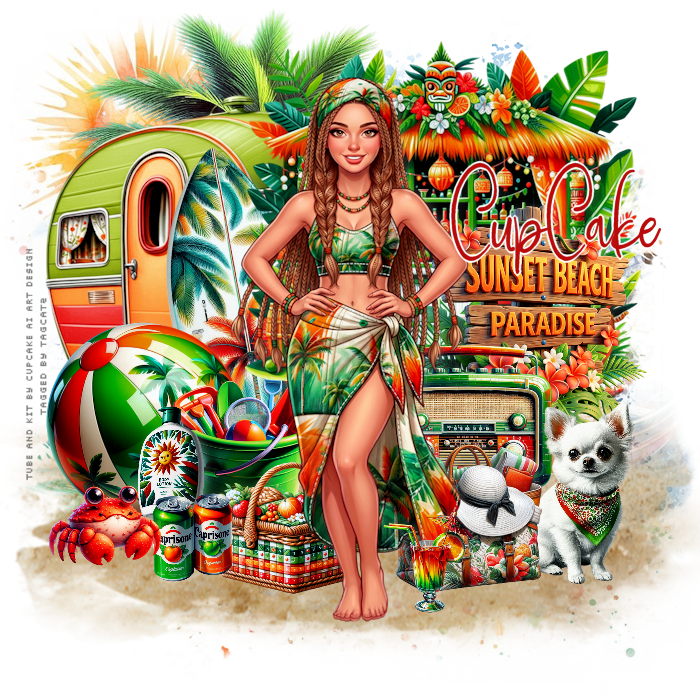
Copy and paste as new image Load your mask with source luminance, fit to canvas and hide all mask checked Merge group Open element 27, resize and move to the top left Open element 37, paste as new layer and then pull the bottom node down to enlarge the sand to about 1/3 of the tag Open element 39, resize to about 400 width, copy and paste as new layer and move to the top left leaving a bit of the tree showing above it Open element 01, resize and rotate right a bit so it "stands" against the trailer Open element 36, resize and move down and to the left side Open element 9, resize and move so it overlaps the beachball and the surfboard Open element 30, resize to about 400 width and move up and to the right side Open element 19, resize and move to the right side Open element 13, resize and move to the right and down a bit It should overlap the bottom of the sign Open element 4, resize and move to the bottom right Open element 26, resize and move down and slightly overlap the dog Open element 32, resize and move down and leave a small gap between it and the beach bag Open element 7, resize and move to the left over the beach ball Open element 25, resize and move to the bottom left overlapping the basket Open element 23, resize and move to the bottom left Open tube 1, resize to 550 height, paste as new layer Open element 16, resize and move to the bottom next to the woman's feet Go through your layers to make any final adjustments and add drop shadows to your elements I use 0, 4, 17, 12 black If you're going to resize your tag, do that now before adding any text Add your designer credit - there is no copyright required because these elements were AI generated For my text, I used Bluetelli, #b60000, foreground blank Convert to raster layer Selections float Selections defloat Selections modify, select selection borders, outside 2, white New raster layer Fill the selection with white Give it a drop shadow Selections, select none Layers, merge, merge down Position where you want it on the tag Merge visible and save as a png file Thanks for trying my tut! Enjoy your new tag! |