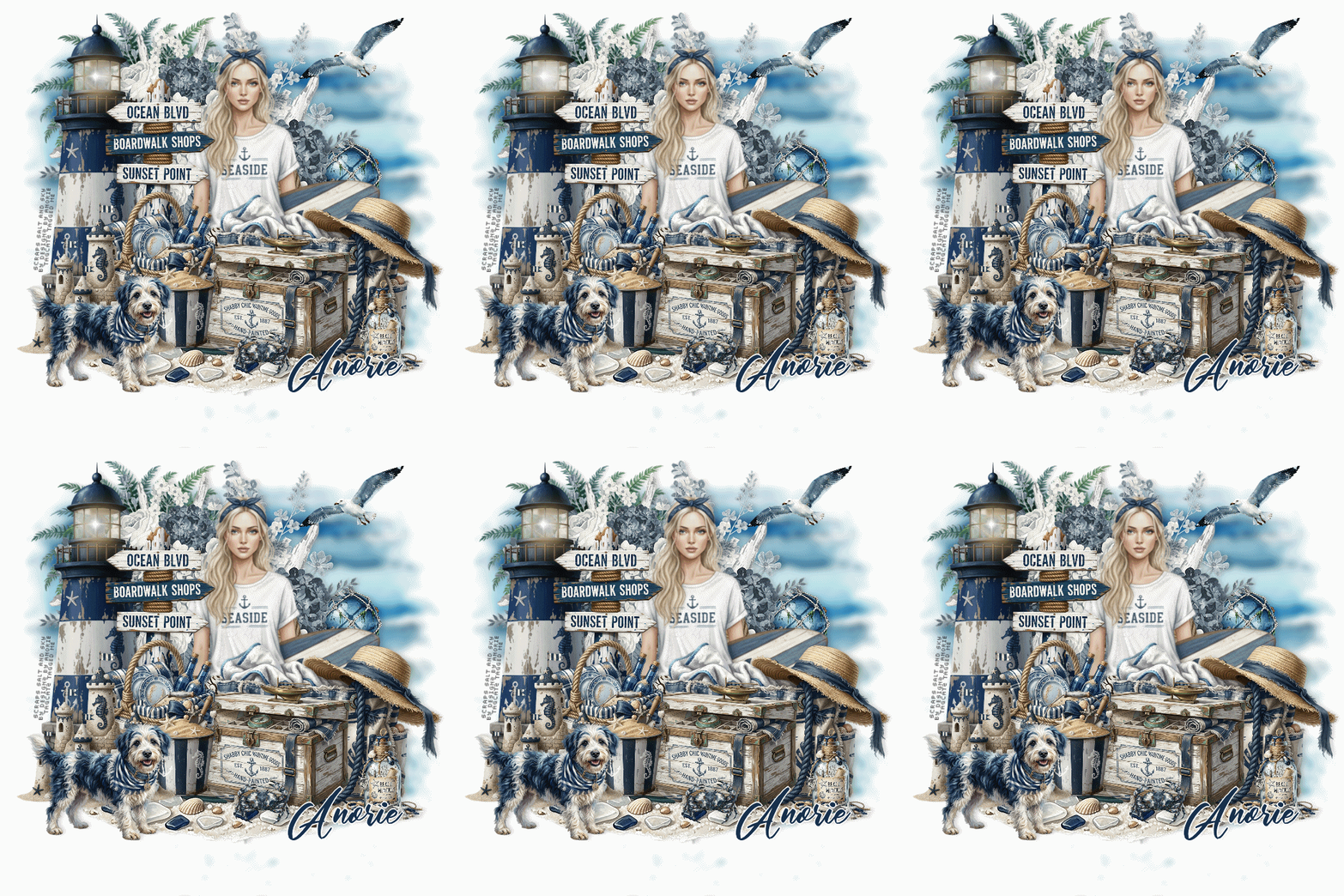
Open a new transparent image 700 x 700 - you can resize later if you like Flood fill with white Open paper 15, resize to 700 width, copy, close, paste as new layer Layers, load save mask, load mask from disk with source luminance, hide all mask, and fit to canvas checked Merge group Move up to the top of the tag, and then with your pick tool, pull the bottom all the way to the bottom of the tag Open element 81, resize and move to the left side of the tag Open element 62, resize and move up and to the left so it overlaps the lighthouse a bit Click your group layer to activate it Open element 79, resize and move up so there is some greenery visible at the top left Open element 59, resize and move up covering the pot part of the greenery Click your group layer again to activate it Open element 58, resize just to the right of the pot Open element 27, paste as new layer, move down Resize - you just want the sand at the bottom so you can remove the top part of the bottle Open element 73, resize and move to the right Click the flower layer to activate it (element 59) Open your tube, paste as new layer - you'll have to play a bit - resize and then remove the lower part of the tube Open element 22, resize and move down and to the right Open element 33, resize and move down and slightly right Open element 76, resize quite small and move down in front of the box Click the directional sign layer to activate it Open element 29, resize and move to the base of the directional sign Open element 94, resize and move down in front of the basket and the corner of the box Open element 97, resize and move to the bottom left Open element 28, resize and move to the bottom right Open element 13, resize and move to the bottom left Open element 45, resize and move to the top right Go through your layers and add drop shadows to your elements I used 0, 4, 17, 12, black Add your credits and copyrights - I used Pixelette, black and then reduced the opacity of the layer to 60% For my text I used Martial Script, #182f4f in the background, foreground closed Convert to raster layer Selections, Select All Selections, float Selections, defloat Selections, modify, select selection borders, 2, outside, white New raster layer Fill with white Give it a drop shadow, then deselect, merge down Move to where you want it on the tag If you are not animating, remove the white background layer and merge visible, save as a png file If you are animating, leave the white background layer, merge all flatten Copy and go to AS and past as new animation Duplicate until you have 16 layers and then minimize for now Back to PSP Open the stainglassflare png, copy and go to AS and paste as new animation Effects, insert image effect (and once you do these settings DO NOT CLICK OK!) 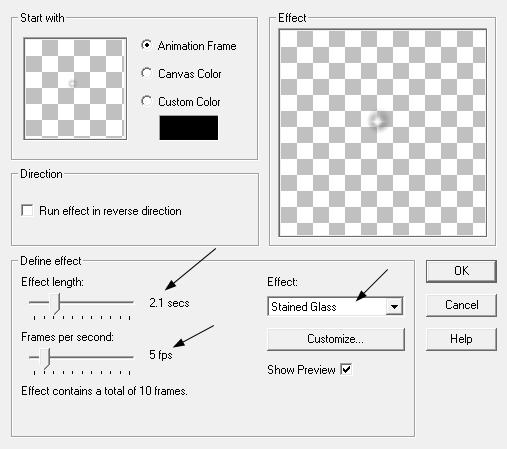 Click on Customize and use these settings 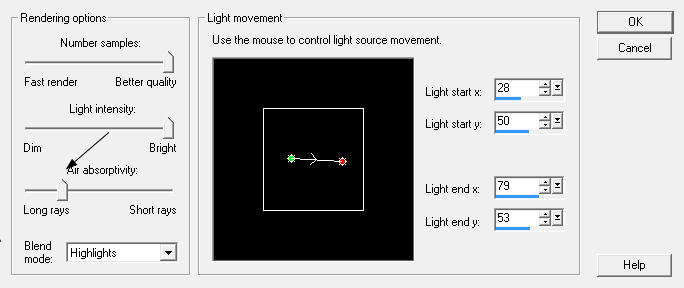 Now click OK Click on the first frame to activate it Edit, Cut Minimize your animation Right click to paste as new animation Effects, insert image effect Check the box next to Run Effect in Reverse Direction Click on customize and change the rays to short rays 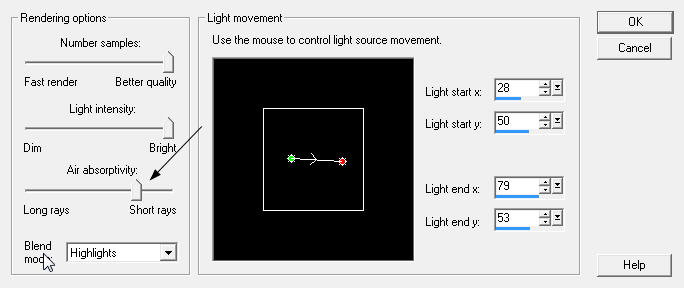 Click ok Edit, select all Edit, copy and close without saving Maximize the first frames you animated Click on the last frame to activate it Edit, paste, after current frame Edit, select all Animation, Cull Animation 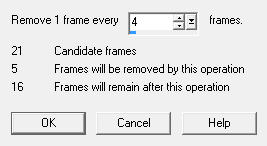 Click OK Edit, select all, copy and close Maximize your tag frames Edit, select all Make sure your slider is all the way to the left so frame 1 is on your screen Edit, paste into selection and position over the lighthouse light and click once to set in place Save as a gif file Thanks for trying my tutorial - enjoy your tag!!! |