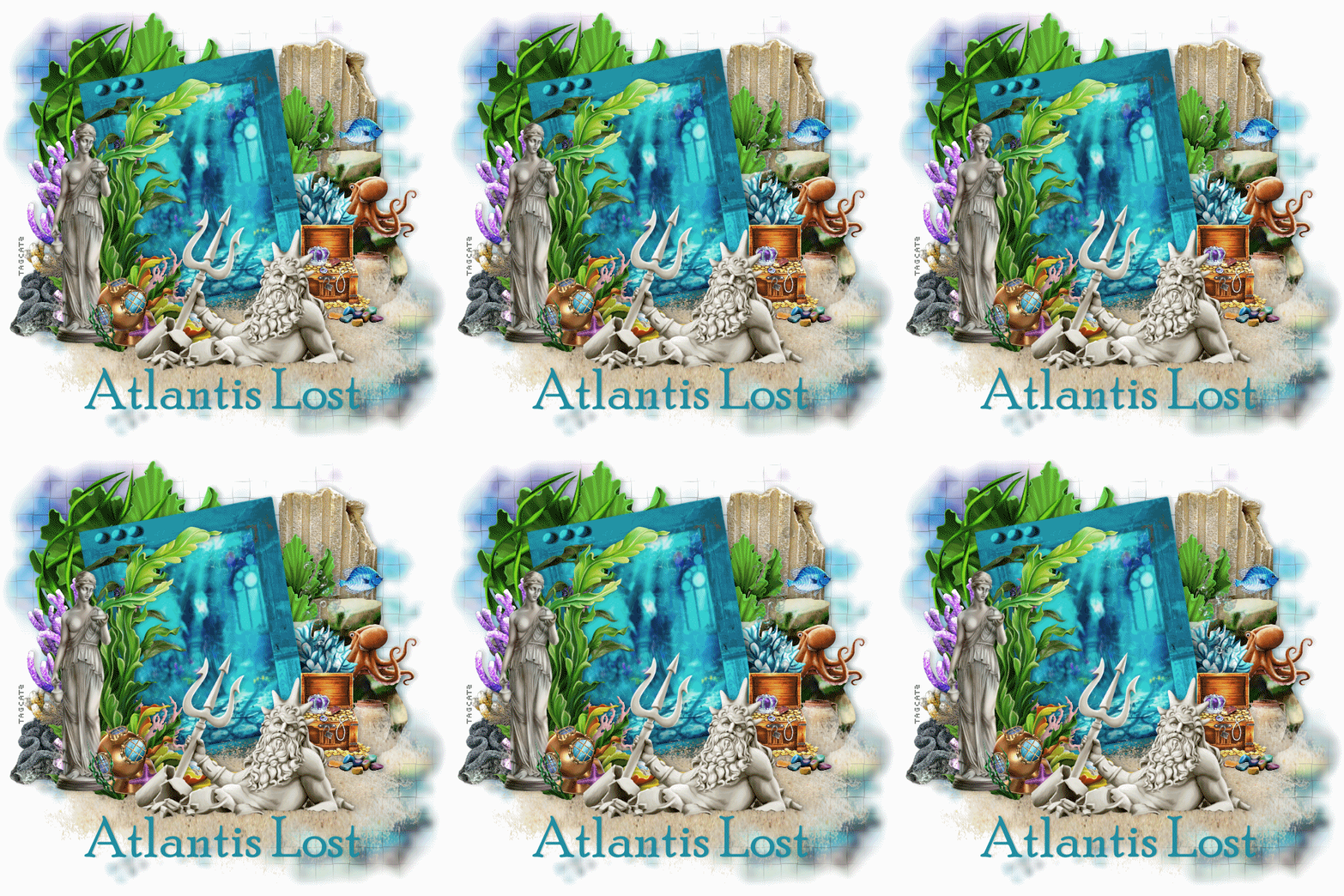
Open paper 6, copy, close and paste as new layer Load your mask with Source Luminenace, Fit to Canvas and Hide All Mask clicked Merge group Effects, Plugins, Neology, Digital Weaver with weave size 26, shadow size 169 Open element 45, copy, close paste as new layer and move up just a bit Click your group layer to activate it Open element 25, resize and move to the right side Open element 68, resize and move to the top left Duplicate this layer, resize smaller and move to the right side Open element 61, move to the top left Open element 81, move to the right side Open element 31, move down and to the right side Open element 47, flip horizontal, resize and move up and to the right side Open element 4, resize and sit him on the rocks on the right side Open element 70, move to the right Open element 65, resize and move to the left side Open element 42, move down a bit Duplicate and move down again - I expanded this a bit too Click your frame layer to activate it With your magic wand, click inside the frame Selections, expand 10 New raster layer Open paper 1, copy, close and paste into selection Select none Move this layer below the frame layer Activate the frame layer again Open element 67, resize and move to the left side of the frame Open element 23, resize and move to the left side of the frame Open element 22, resize and move to the feet of the statue Open element 38, resize and move to the right side of the frame Open element 35, resize and move down Open element 82, resize quite small and move in front of the chest If you're going to resize, do that now before adding any text If you're going to animate, leave it this size and reduce size after animation in AS Add your watermark and any text If you are NOT animating, merge visible and save as a png file TO ANIMATE Merge all flatten copy and go to AS and paste as new animation Duplicate until you have 15 frames and then minimize for now Open animation 1155 from Sophisticat Simone's package 409 Edit, select all Animation, resize animation Check Pixel size, and choose 250 height (width will adjust automatically) Edit, select all Edit, copy and close Maximize your tag layers Edit, select all Make sure your slider is all the way to the left so Frame 1 is on your screen Edit, paste into selected frame Position the bubbles where you want them and click once to set them in place Save as a gif file Hope you like your new tag! |