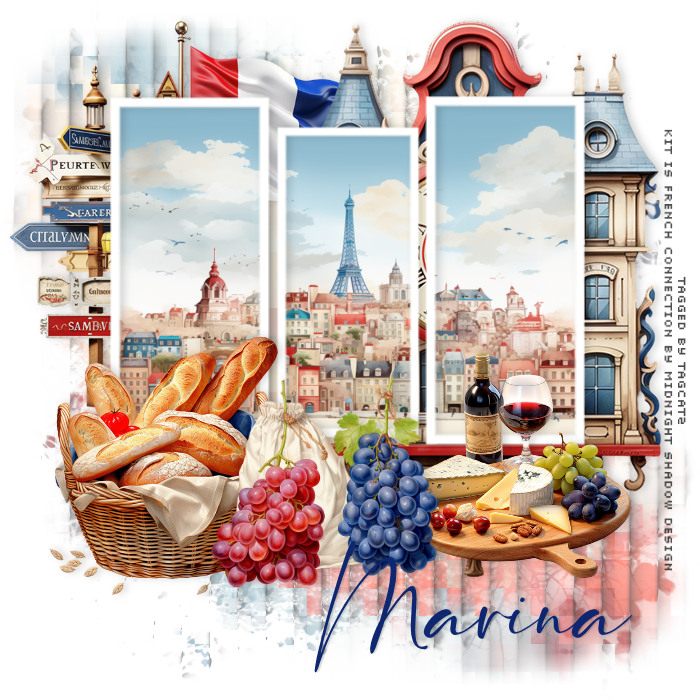
Open a new transparent image 700 x 700 Set your background color to #ffffff, and the foreground color closed With your rectangular tool, draw a rectangle With your magic wand, click the rectangle Selections, Modify, Contract 10 Edit, cut Select none Duplicate the frame twice and move to get something like this: 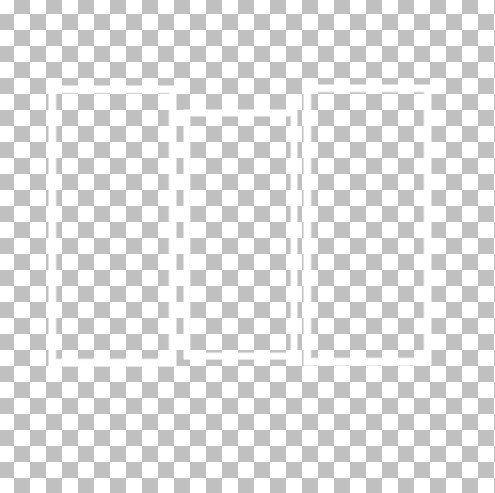 You can use them vertically or horizontally depending on the look you want Save the image in case you might want to use it again Edit, copy and close Open a new transparent image, 700 x 700 - you can resize later if you want to Paste your frames as a new layer Click on the bottom empty layer Open paper 4, resize to 700 x 700, copy and close, paste as new layer Effects, plugins, Neology, Blend Mosaic with a tile size of 28 Effects, plugins, Redfied, Lattice Composer: 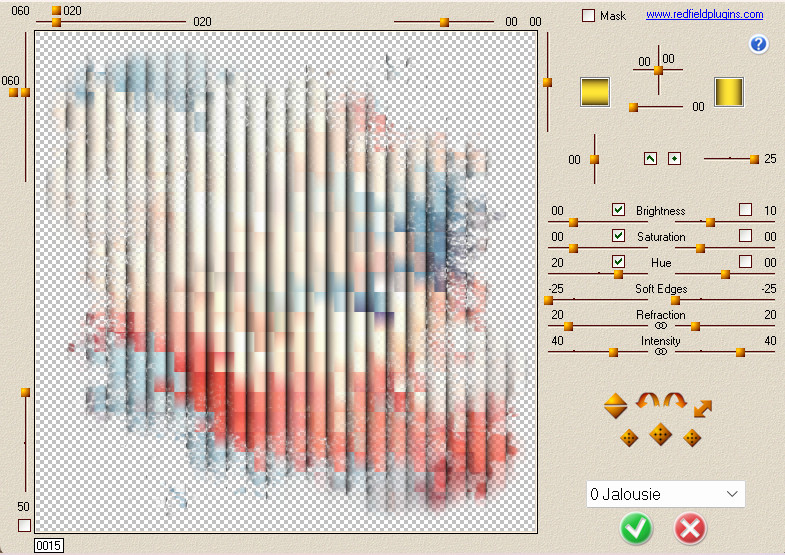 Paste your frames as a new layer With your magic wand click inside each of the frames while holding down your shift key Selection, modify, expand 5 New raster layer Open one of the papers you like, copy, close, and paste into selection Select none Move this below the frames layer Click on your background layer to activate it I used elements 8, 5, and 1 in the background, all resized Use different ones if it suits you :) Click your frames layer to activate it I used elements 12, 13, and 7 in front of the frames, resized Again, if you like other elements the choice is yours! Add drop shadows to your element layers I used 0, 4, 17, 12, black If you're going to resize, do that now before adding text Add your name with any nice script font in a dark blue Layers, merge, merge visible Save as a png file Thanks for trying my tut and enjoy your new tag! |